To check the Web application, click here
Android
Features
- Login / Sign up
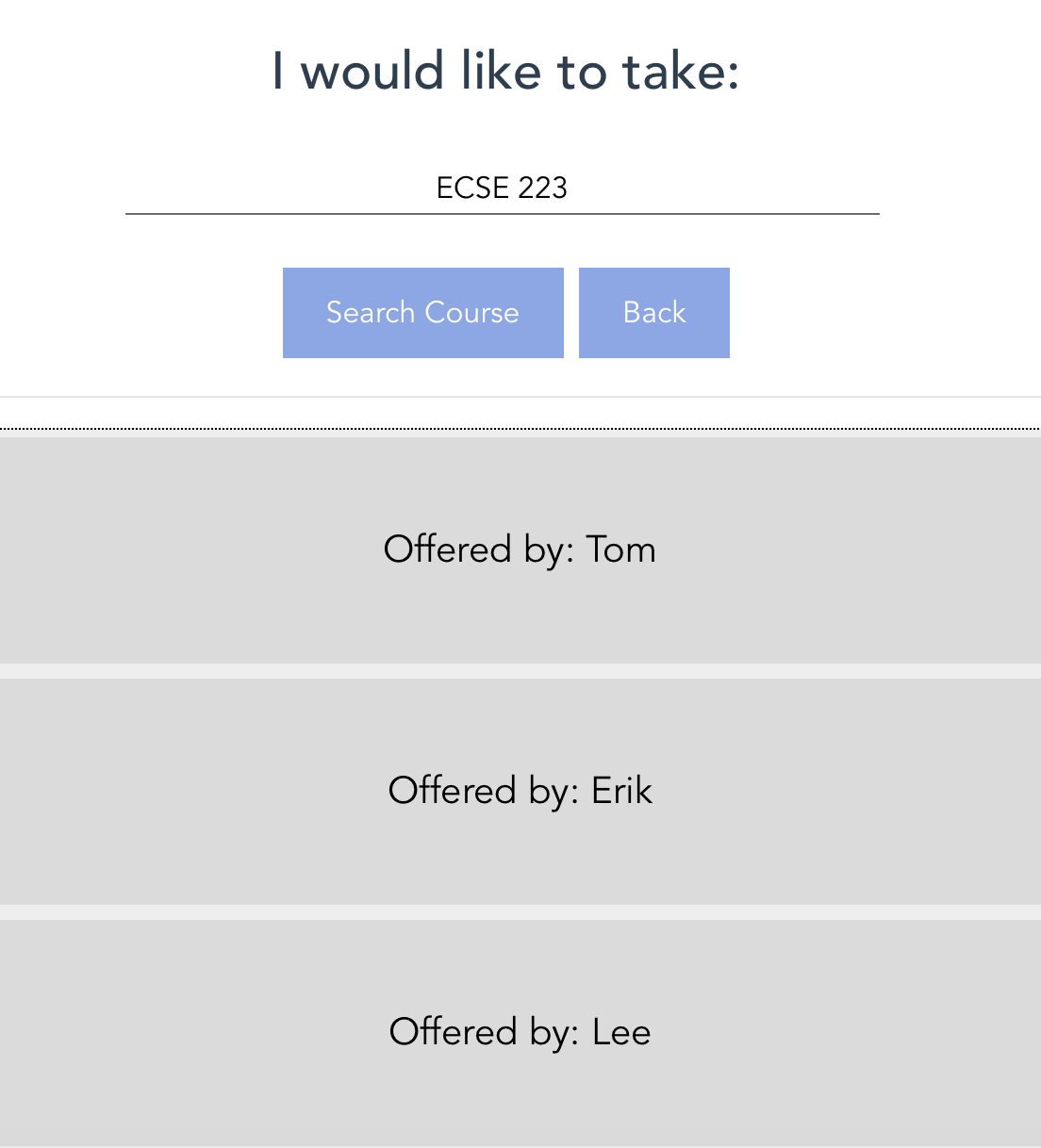
- Search Course
- Course Registration
- Group Tutorial Request
- Check bill
Note
- Testing account: User: Jason, Password: 54321
- Available course to search: ECSE 223
- Tutors who offer ECSE 223: Tom, Erik, Lee
1. Login / Sign up
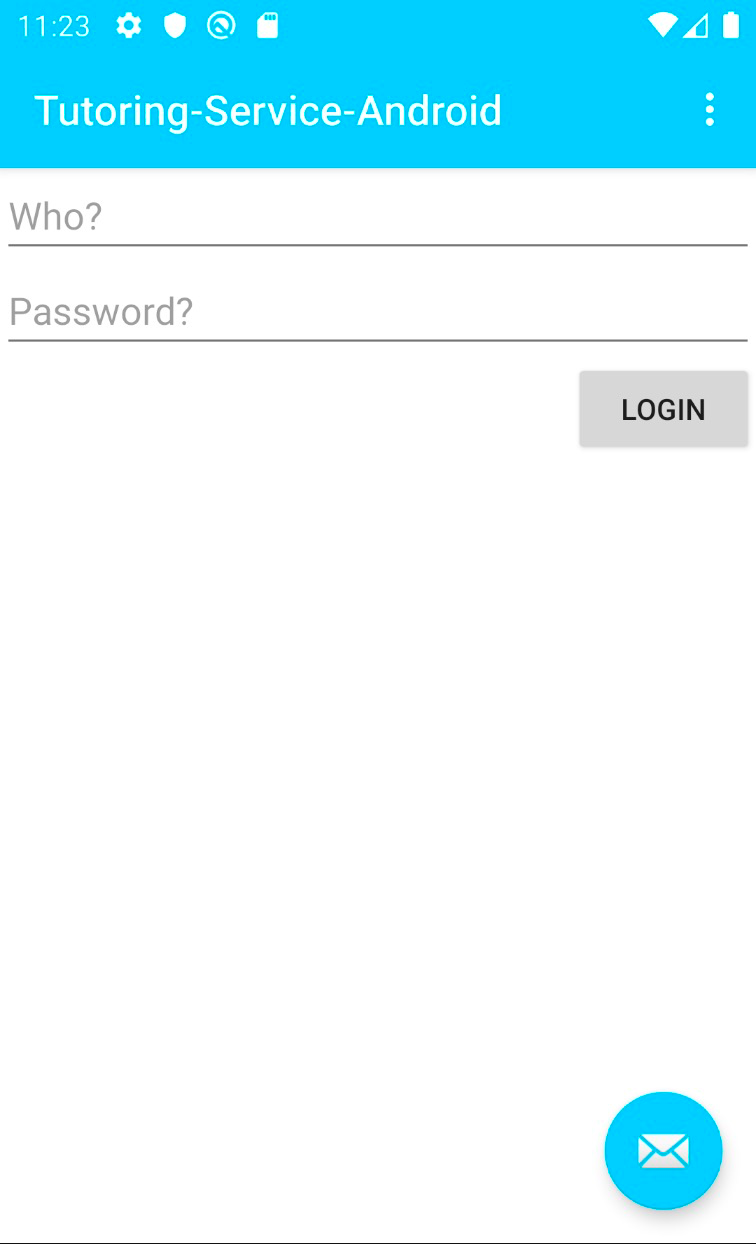
When the app is opened, the login / Sign up page would be presented first.
2. Search Course
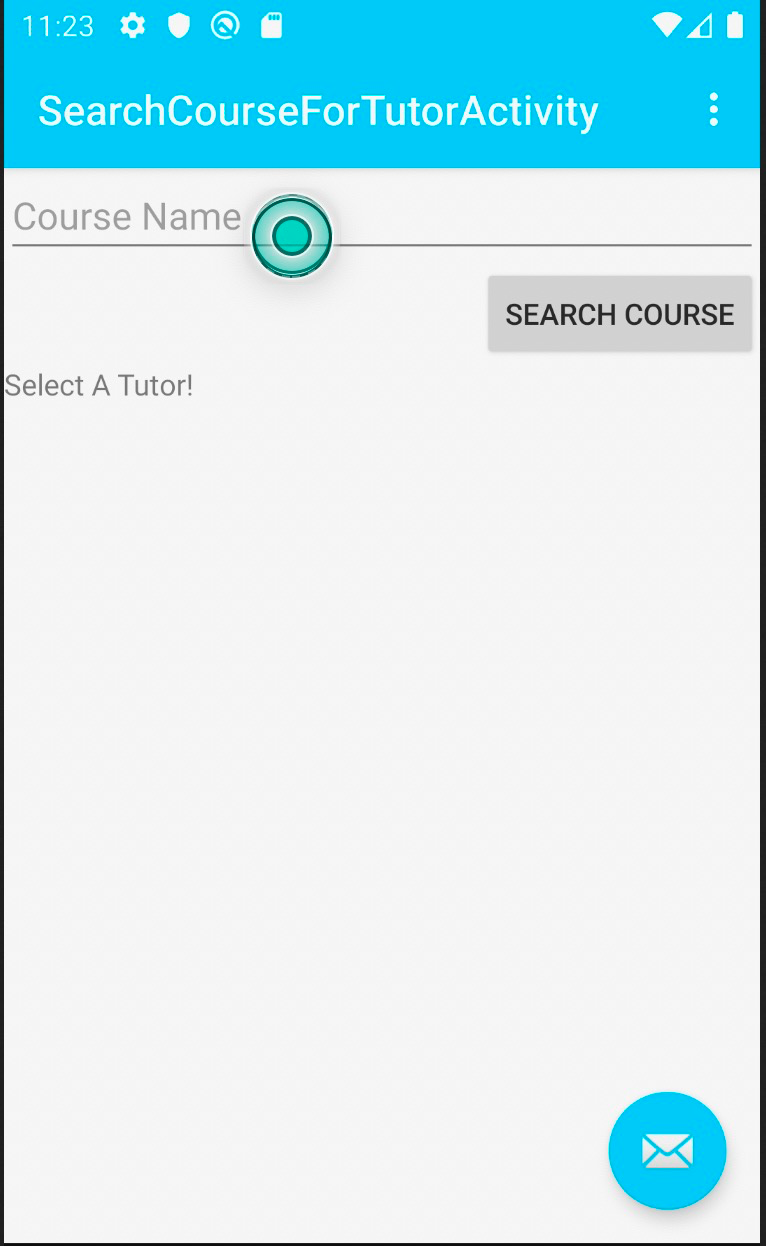
When the user type in username and password, the user would enter homepage to search course. A tutor need to be selected for course registration.
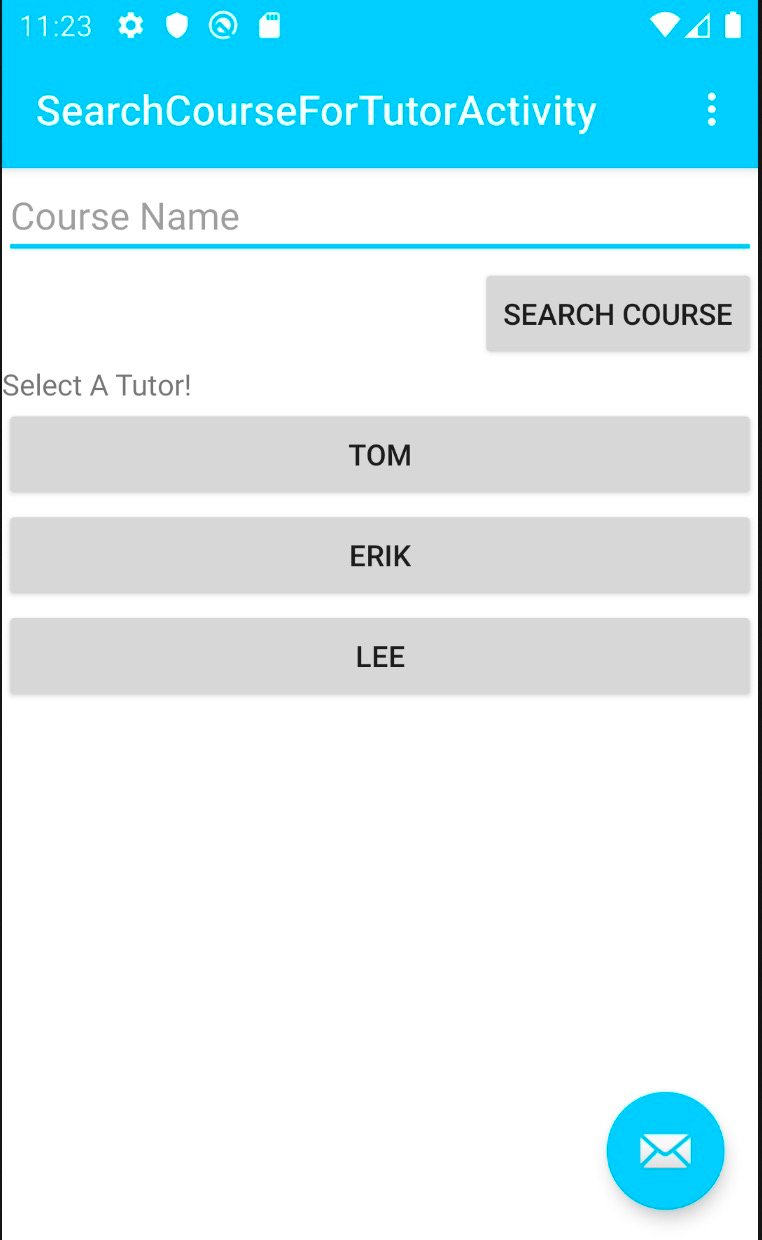
3. Course Registration
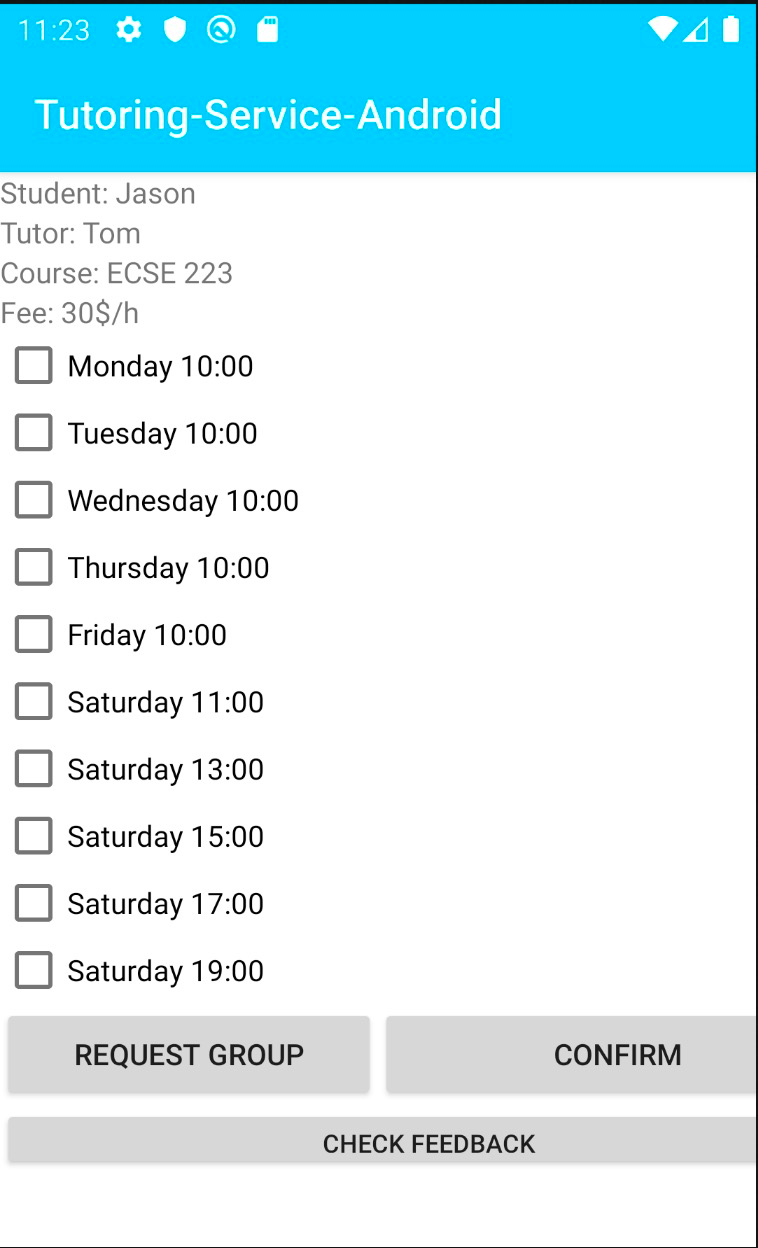
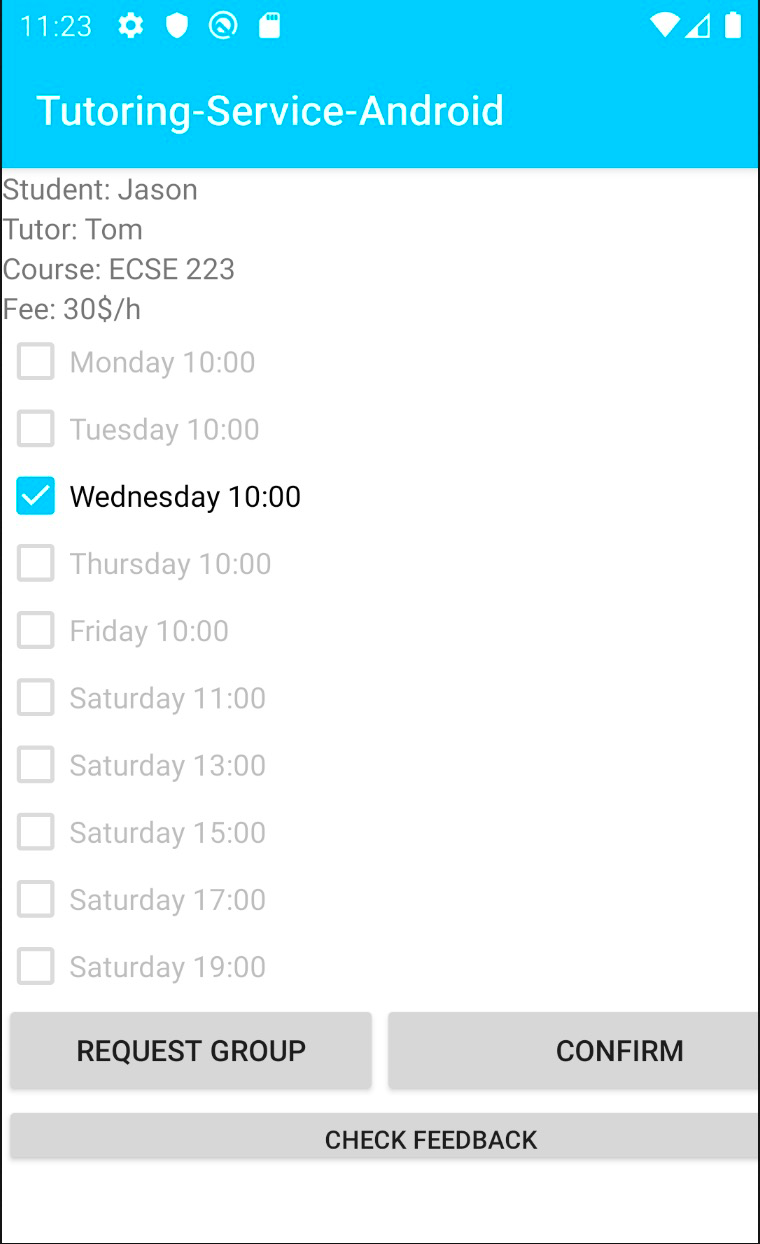
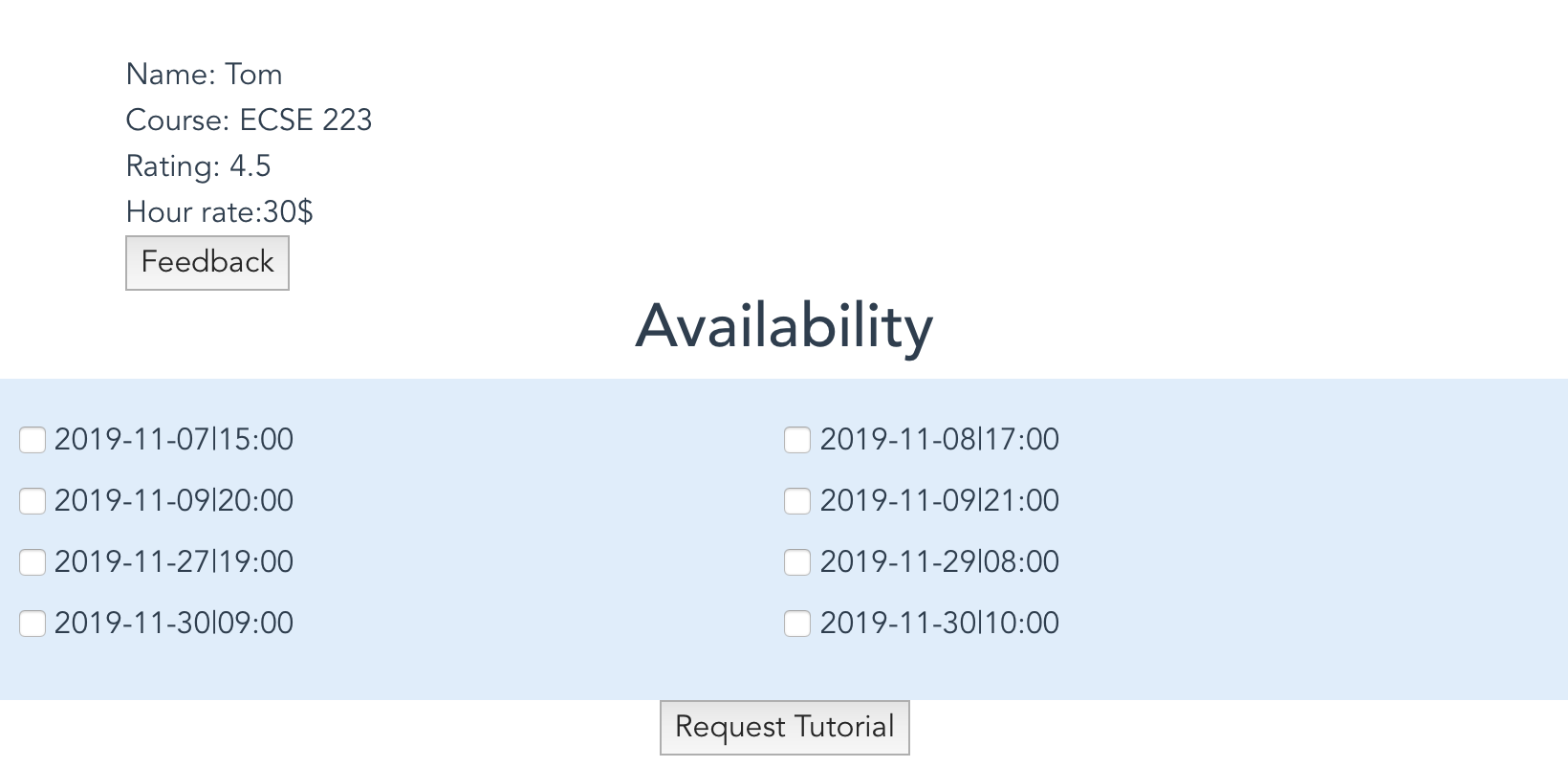
After tutor is selected, then the user (student) shall select an available time slot for course registration.
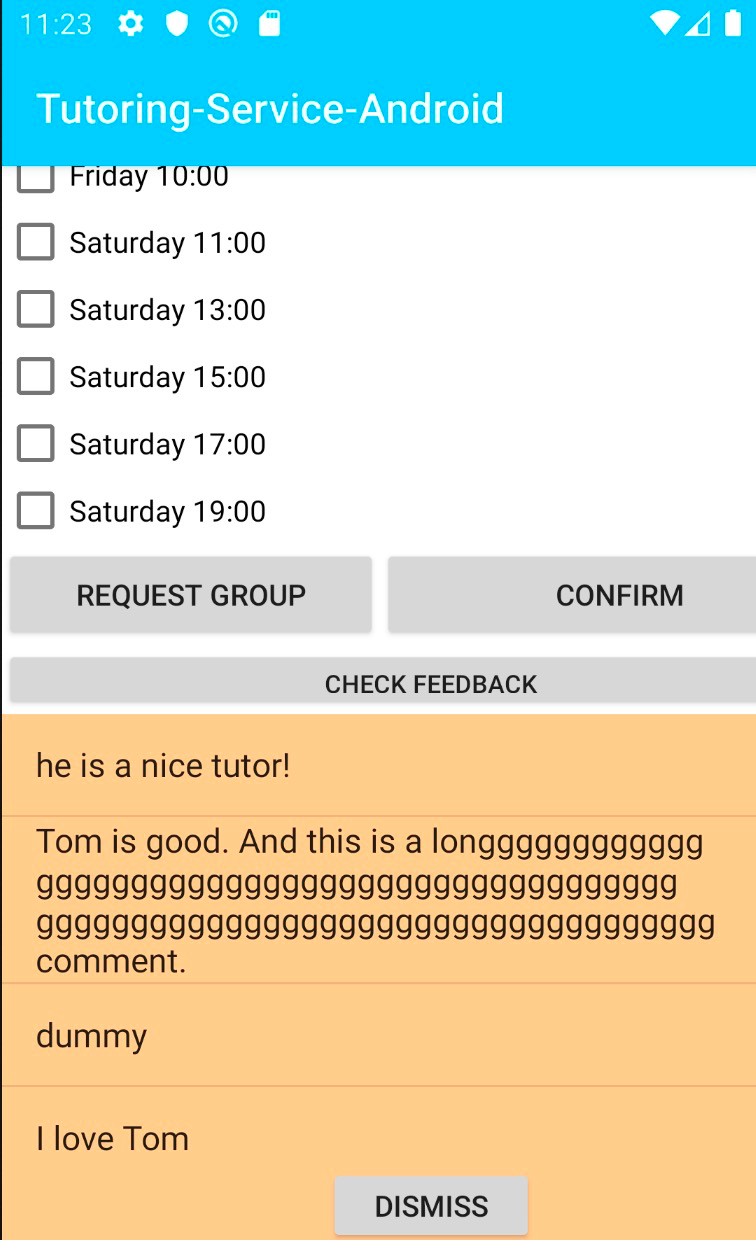
The student can also view the comments of the tutor from other students.
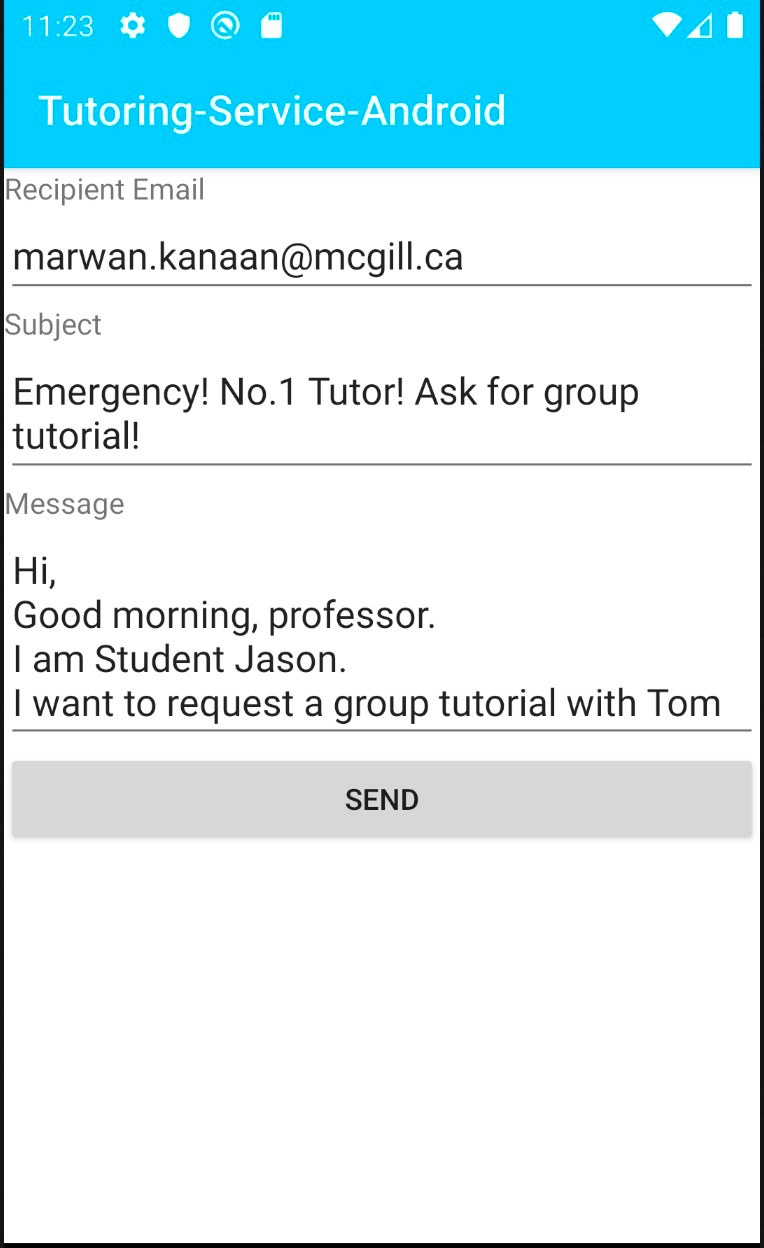
4. Group tutorial request
Student shall send group request.
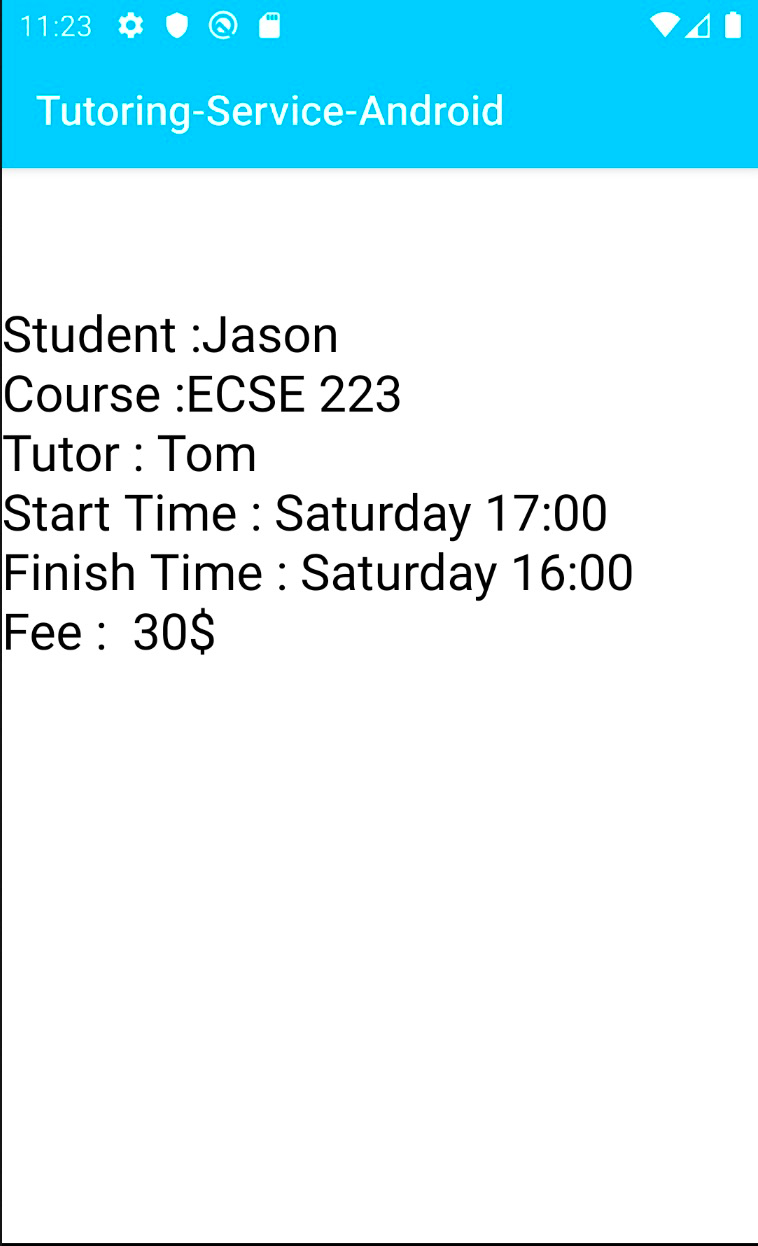
5. Check bill
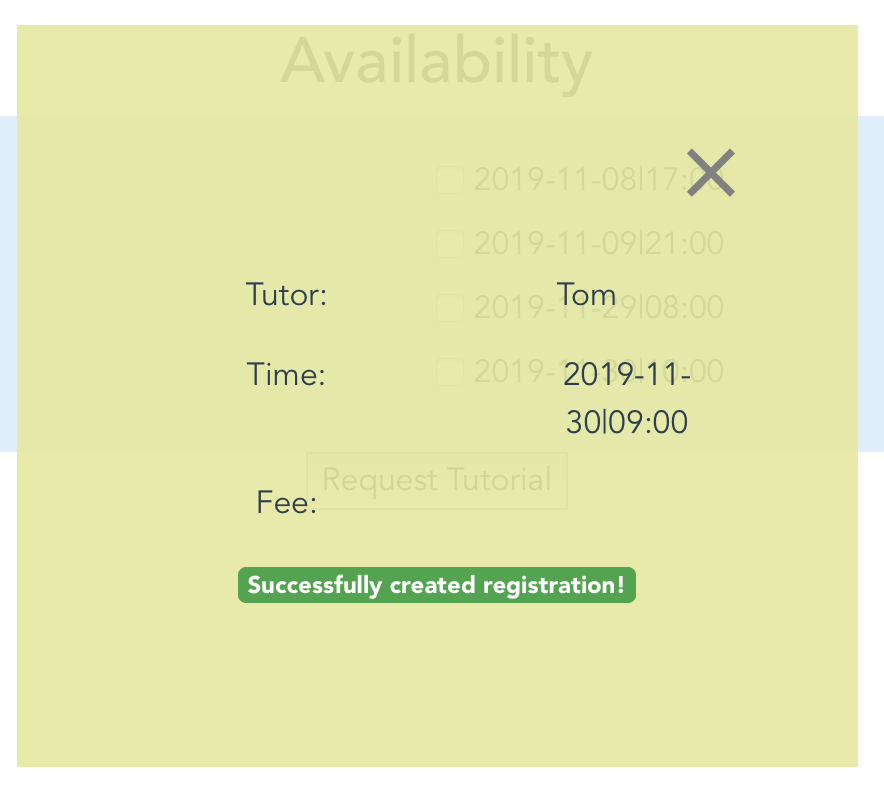
The student shall see the confirmation of registration after clicking Confirm.
Web
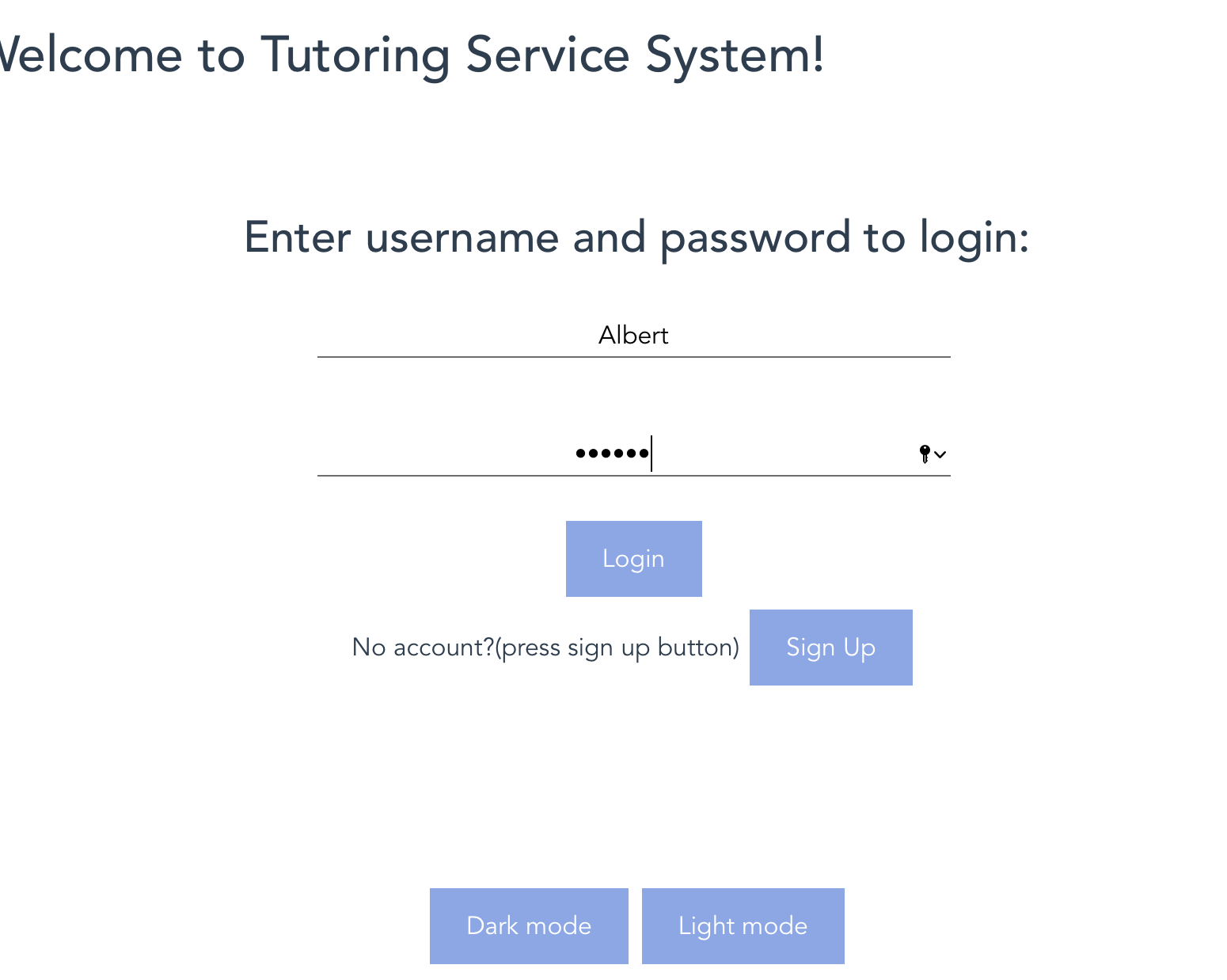
- Login and signup
Login is an extra feature we implemented, so you can just use the account:
Name:Jason
Password:54321
Note that when the page is first opened, no matter what button to click, the page will refresh itself (not sure why). So you can log in after click a random button once. Also, first time log in will take some time to load.
2. Homepage
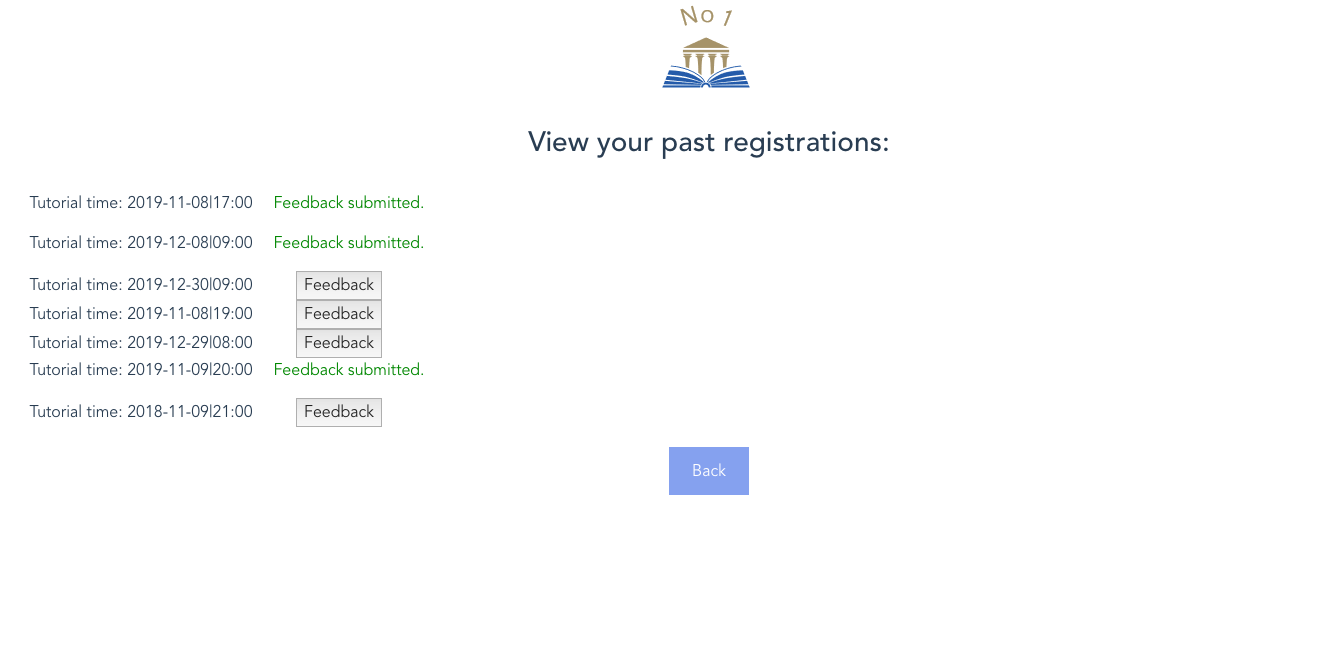
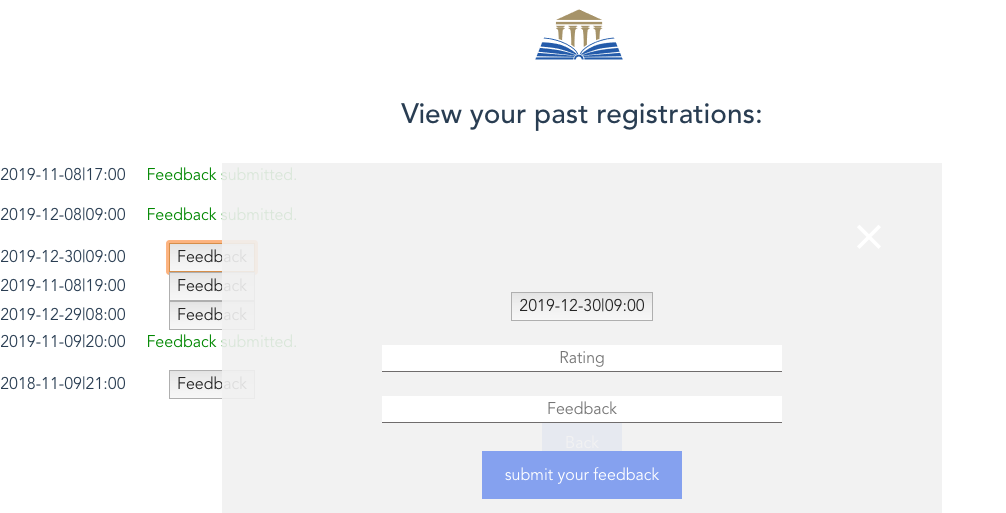
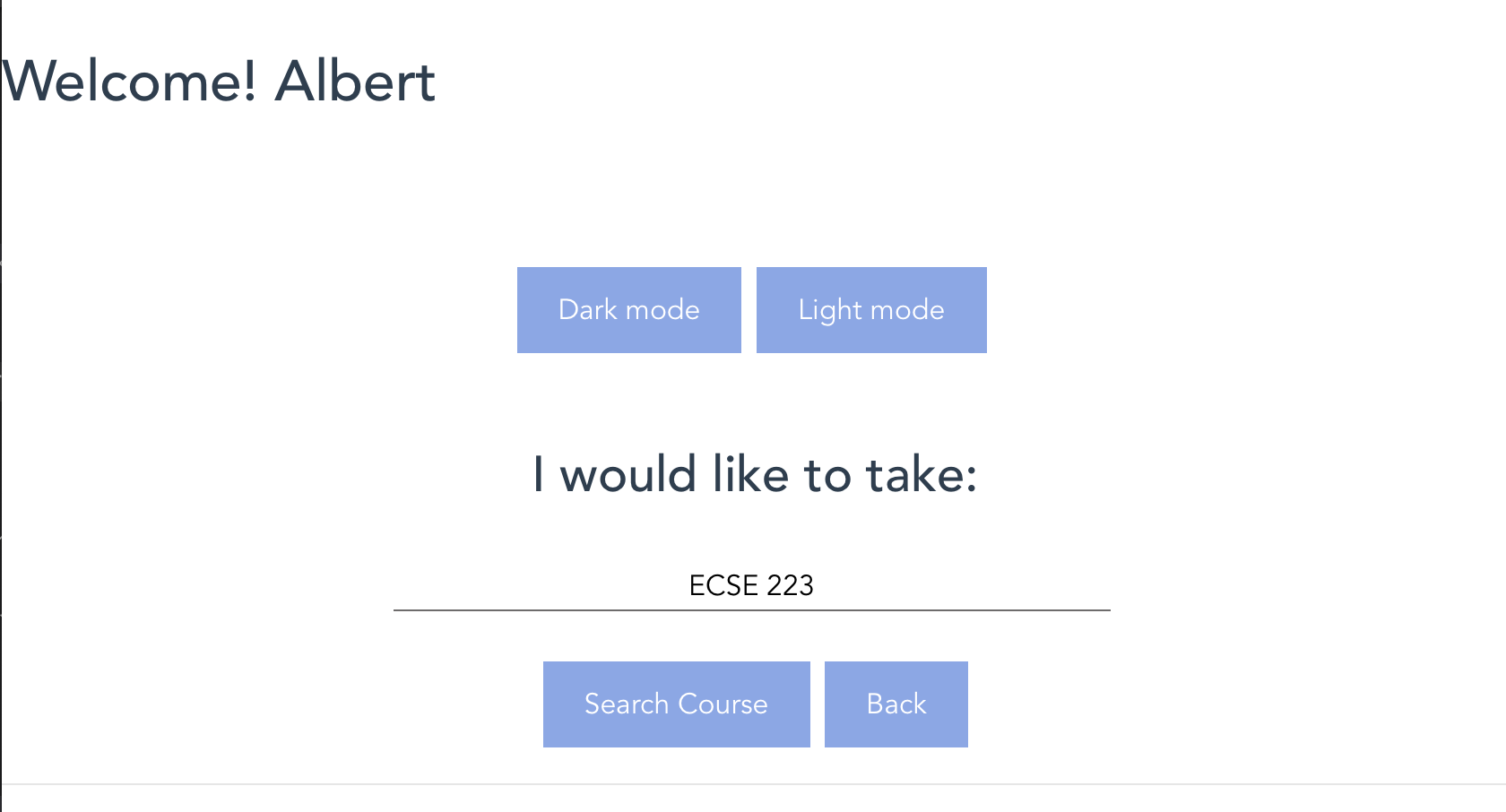
After logging in, the student could search tutor either by tutor name or by course name. Student can also click "Give Feedback" to go submit feedback for tutors under his/her registrations.
You could simply use the info below as input:
Course name: ECSE 223
Tutor name: Tom

3.Request tutorial session
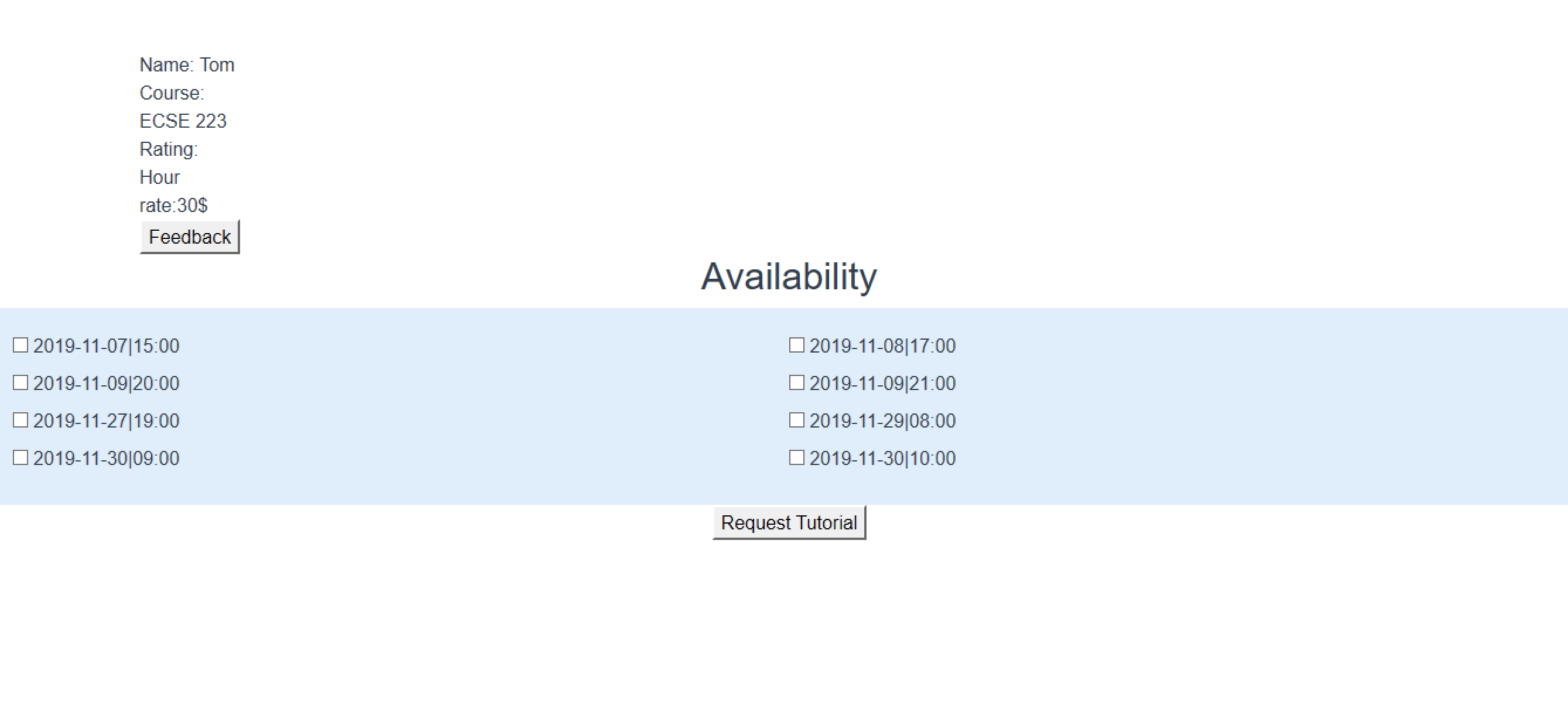
After that, the student will be able to select the availability of the tutor.
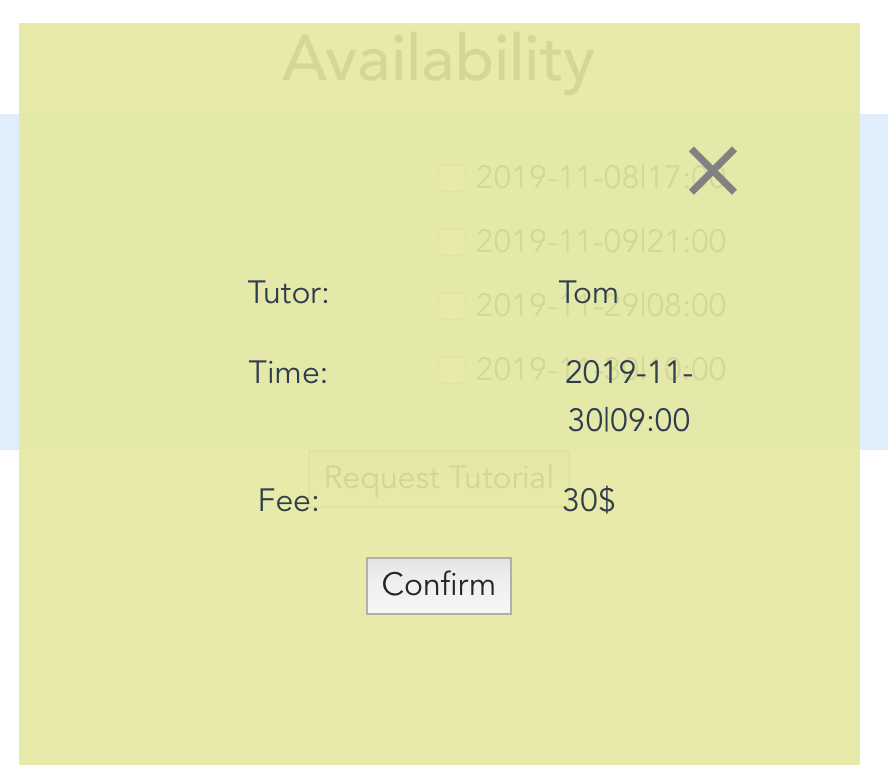
Once the student select a tutorial time, and an overlay will show. The student then press confirm.

4.Provide feedback to tutor. Click "Give Feedback" from homepage
Student can only submit the feedback once regarding one registration.